
To enable new features and datasets after releases, your Salesforce admin must update the plugin. Please ensure your current Preqin package supports the new datasets.
Sandbox:
https://test.salesforce.com/packaging/installPackage.apexp?p0=04tJ7000000or3fIAA
Production:
https://login.salesforce.com/packaging/installPackage.apexp?p0=04tJ7000000or3fIAA
Update process (all previous versions)
Once you’ve clicked on the correct link above, you should be directed to the page below:
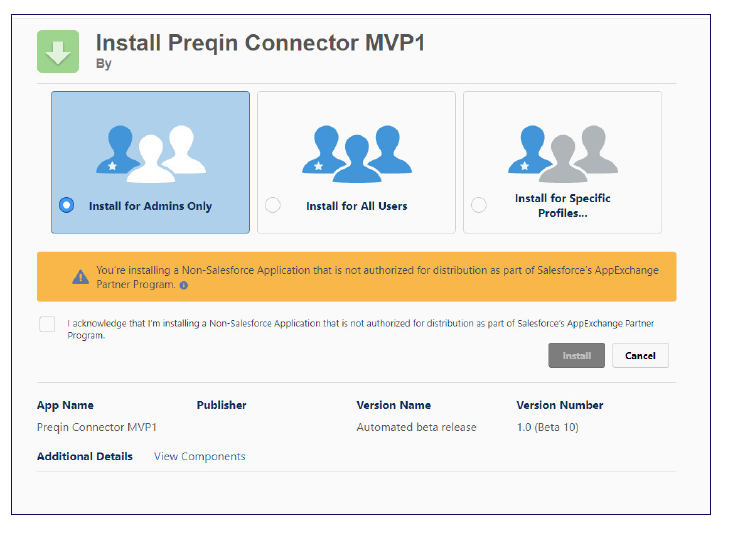
Tick the box next to 'I acknowledge that I’m installing a Non-Salesforce Application that is not authorized for distribution as part of Salesforce’s AppExchange Partner Program’. This will enable you to then click on the 'Install' button.
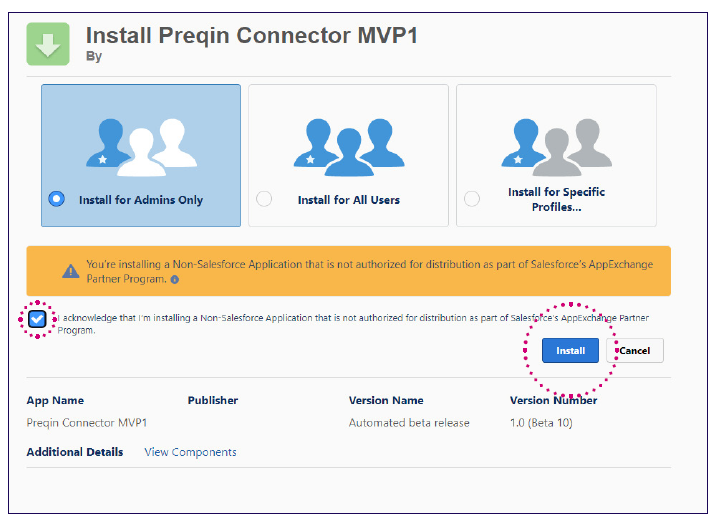
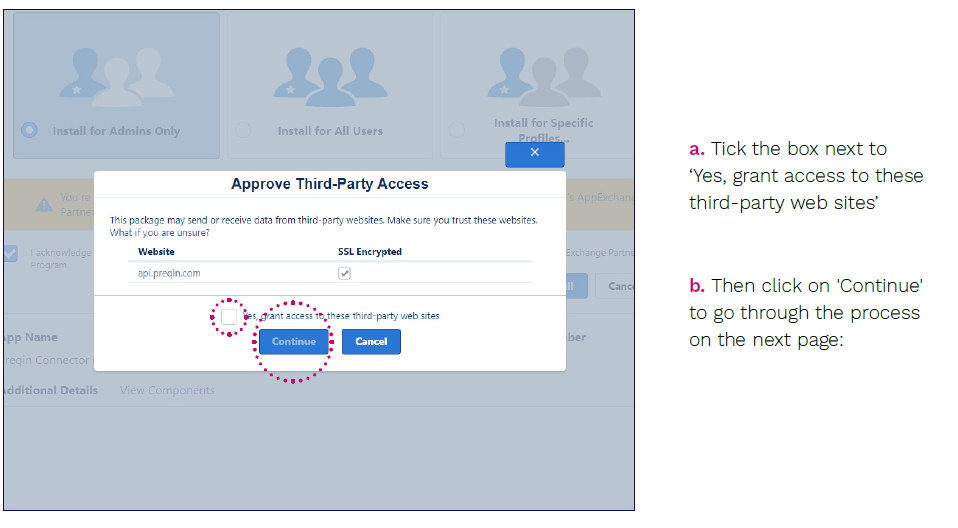
Once you’ve clicked on 'Install', the below dialog box will appear:
Tick the box next to ‘Yes, grant access to these third-party web sites’
Then click on 'Continue' to go through the process on the next page:
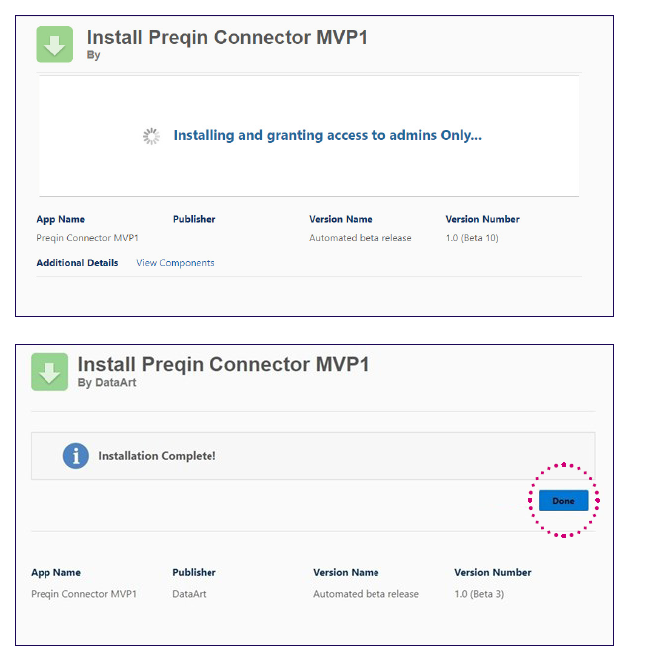
When 'Upgrade Complete!' message is shown, click on 'Done'. As a result, ‘Installed Packages’ page is opened where:
'Installed Packages' section shows information about new package
'Uninstalled Packages' section shows information about previous package


Additional update steps for versions 1.39 or older
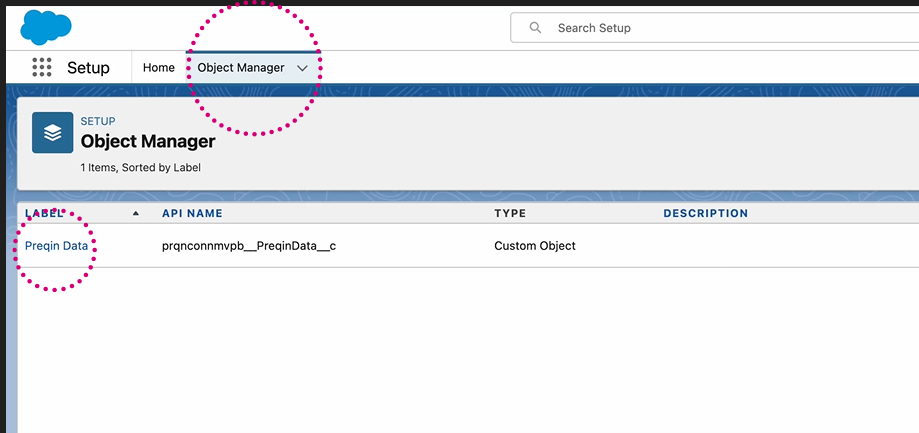
Navigate to Setup > Object Manager. Then click on 'Preqin Data' Custom Object
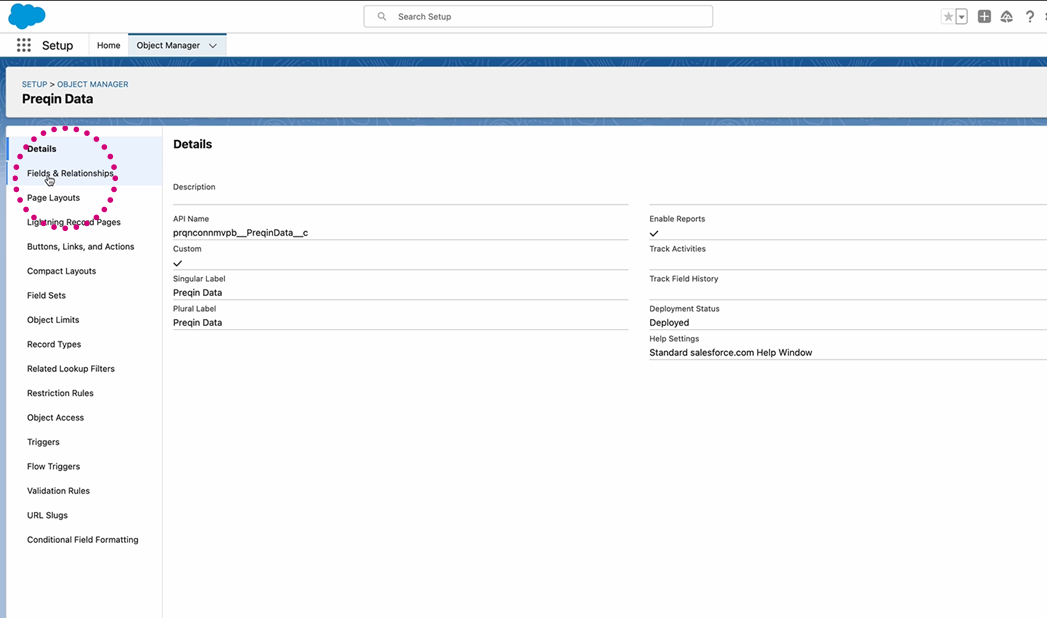
Go to Details > Fields & Relationships
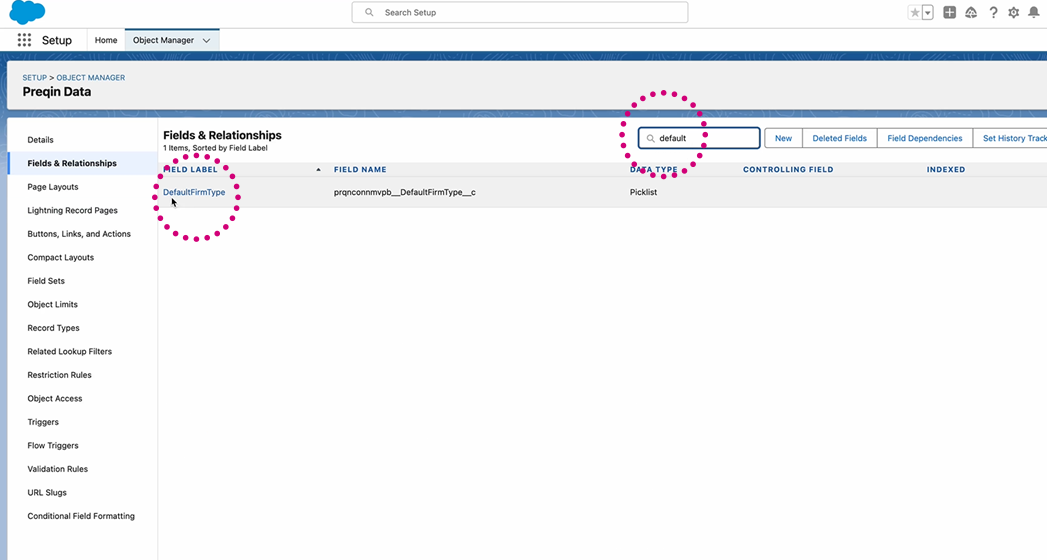
And search the 'DefaultFirmType' field label to manage custom fields
Users on version 1.39 or older should only see Investor and/or Fund Manager as active values
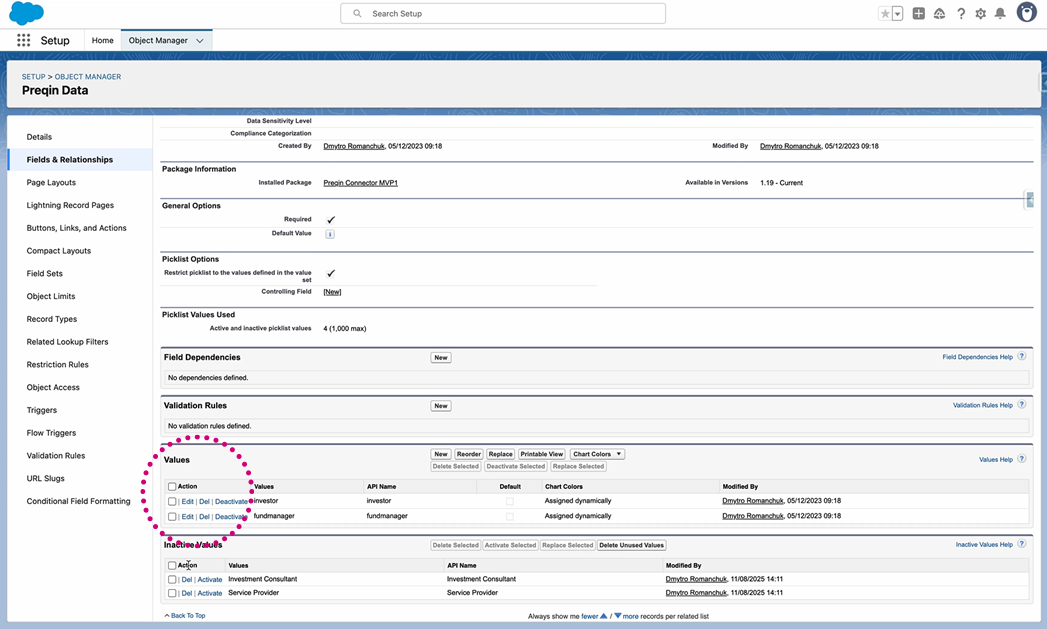
To add the new values, click ‘Activate’ on the relevant new data types from the ‘Inactive Values’ section. As a reminder, this must be aligned with your existing Preqin package.
Note – If the values are not appearing in the ‘Inactive Values’ section, you can manually insert them directly into ‘Values’ by clicking 'New' and typing in 'Investment Consultant' and 'Service Provider'
Once this is complete, click 'Save'.


